How to Use Google Lens to Identify Any Plant Product or Text From a Photo
By Convertixy Editorial Team
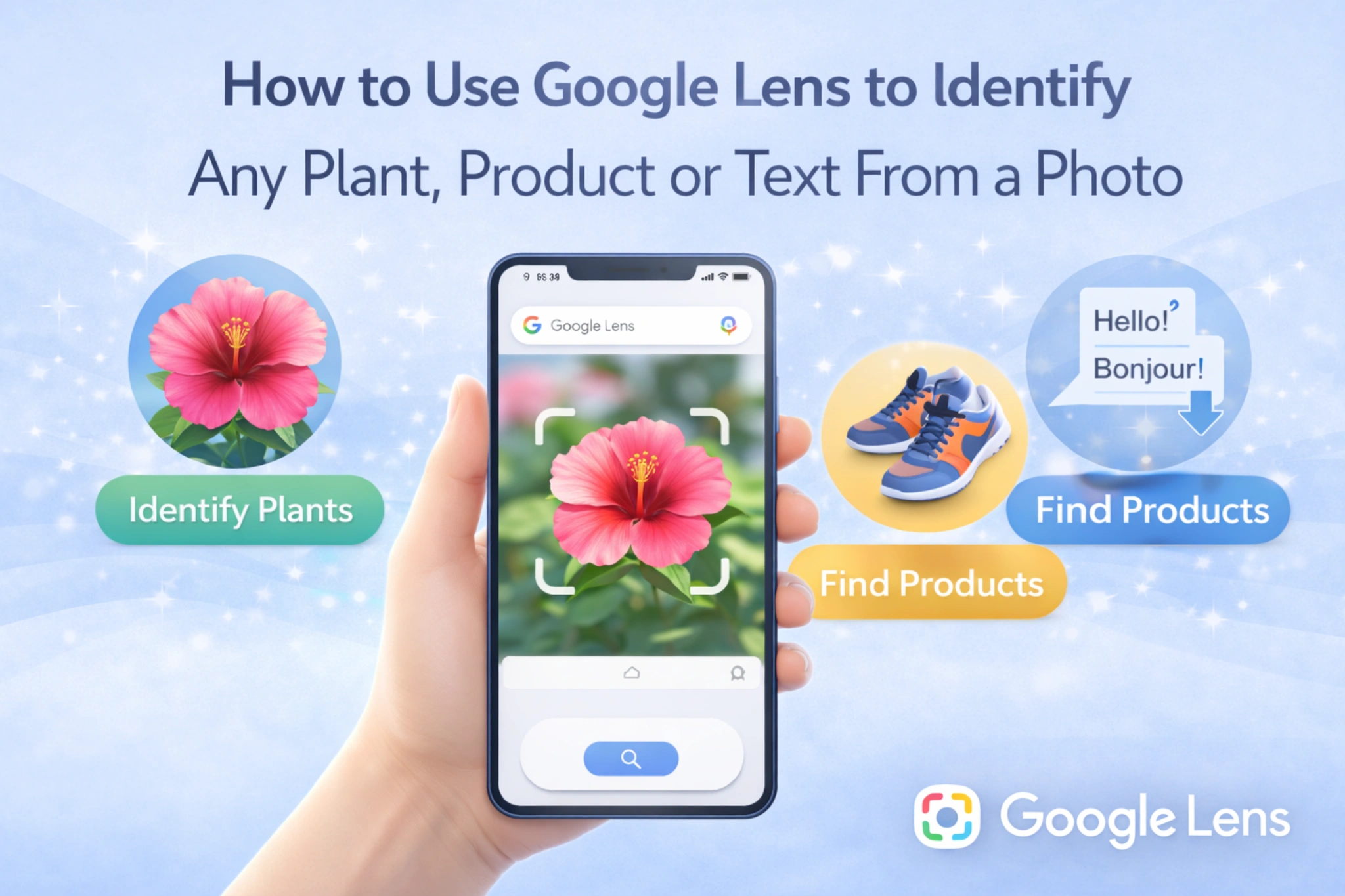
Have you ever seen something interesting and wondered what it is?
Maybe you found a beautiful plant while walking outside. Maybe you saw a cool product in a shop. Or maybe you saw text in another language and wanted to understand it.
In the past, you had to search manually, type descriptions, or ask someone else. But now things are much easier.
With Google Lens, you can simply use your camera to identify almost anything within seconds.
In this guide, you will learn how to use Google Lens step by step. Even if you are a beginner, you will be able to use it easily after reading this.
What Is Google Lens
Google Lens is a smart visual search tool created by Google. It uses artificial intelligence to understand what is inside an image.
Instead of typing words, you just show an image, and it gives you information.
This makes it very fast and easy to use.
Google Lens can do many things like:
- Identify plants and animals
- Recognize products and show prices
- Translate text from one language to another
- Copy text from books or notes
- Solve questions and find information
It is like having a smart assistant inside your camera.
Where You Can Use Google Lens
Google Lens is available in many places, so you do not need to install anything extra in most cases.
You can use it in:
- Google app
- Google Photos
- Android camera app
- Chrome browser
If you are using an Android phone, it is probably already available in your camera.
If you are using iPhone, you can use it through the Google app or Google Photos.
How to Use Google Lens Step by Step
Using Google Lens is very simple. Follow these steps carefully.
Step 1 Open Google Lens
Open the Google app or camera app and look for the Lens icon.
Tap on it to start.
Step 2 Point Your Camera at the Object
Now point your camera at the object you want to identify.
This can be:
- A plant
- A product
- A book
- A building
- Any object
Make sure the object is clearly visible.
Step 3 Tap the Search Button
After pointing the camera, tap the search button.
Google Lens will scan the image and start processing it.
Step 4 View the Results
Within seconds, you will see results on your screen.
These may include:
- Name of the object
- Similar images
- Related websites
- Shopping links
You can tap on any result to learn more.
How to Identify a Plant Using Google Lens
One of the most popular uses of Google Lens is plant identification.
Let’s say you see a plant and want to know its name.
Just follow these steps:
- Open Google Lens
- Point the camera at the plant
- Tap search
Google Lens will show:
- Plant name
- Similar plants
- Information about it
This is very useful for students, gardeners, and nature lovers.
How to Identify a Product Using Google Lens
If you see a product and want more details, Google Lens can help.
For example, you see a shoe or gadget in a store.
Just scan it.
Google Lens will:
- Show similar products
- Give price options
- Show online stores
This helps you compare prices and find better deals.
How to Copy Text From an Image
Sometimes you see text in a book or image and want to copy it.
Typing it manually takes time.
Google Lens can do it instantly.
Steps:
- Open Google Lens
- Point at the text
- Select the text on screen
- Tap copy
Now you can paste it anywhere.
This is very useful for students and office work.
How to Translate Text Using Google Lens
Google Lens can also translate text from one language to another.
For example, if you see text in English, you can translate it into Hindi or any other language.
Steps:
- Open Google Lens
- Point at the text
- Tap translate
You will see the translated text instantly.
This is very helpful while traveling or reading foreign content.
Tips to Get Accurate Results
To get the best results, follow these simple tips:
- Use good lighting
- Keep your camera steady
- Focus clearly on the object
- Avoid blurry images
- Do not include too many objects in one frame
Better image quality gives better results.
Common Mistakes to Avoid
Many people do not get correct results because of small mistakes.
Avoid these:
- Taking blurry photos
- Scanning multiple objects together
- Not focusing properly
- Using very dark images
Always keep your image clear and simple.
Is Google Lens Free to Use
Yes, Google Lens is completely free.
You do not need to pay anything.
All you need is a smartphone with internet connection.
Why Google Lens Is So Useful
Google Lens saves a lot of time.
Instead of searching manually, you get instant answers.
It is helpful for:
- Students
- Shoppers
- Travelers
- Content creators
- Everyday users
It makes your phone smarter and more useful.
Final Thoughts
Google Lens is one of the most powerful tools you can use today.
With just your camera, you can identify plants, products, and text in seconds.
It is simple, fast, and very useful in daily life.
If you are not using Google Lens yet, you should start using it today.
Frequently Asked Questions
Can Google Lens identify any plant
Google Lens can identify many plants, but not all. It works best with clear images.
Can Google Lens find products online
Yes, it shows similar products and allows you to compare prices.
Can Google Lens copy text from images
Yes, you can copy and paste text easily.
Is Google Lens safe to use
Yes, it is safe for normal use. Avoid scanning sensitive personal data.