Safe vs Unsafe File Tools: How to Identify and Protect Your Data
By Convertixy Editorial Team
Introduction
Online file tools have made our work much easier. From converting files to compressing images and editing PDFs, everything can now be done directly in the browser.
But here is the problem.
Not all file tools are safe.
Some tools are designed to help users, while others may secretly collect data, inject malware, or misuse your files. Many users do not realize this risk and upload sensitive files without thinking twice.
That is why understanding the difference between safe and unsafe file tools is extremely important.
In this guide, you will learn how to identify safe vs unsafe file tools, what warning signs to look for, and how to protect your data while using them.
What Are File Tools?
File tools are online or offline utilities that help you manage files.
These tools allow you to:
- Convert file formats
- Compress or extract files
- Edit PDFs
- Resize images
- Clean or format data
Most modern file tools are web-based, meaning you do not need to install anything.
Why Safety Matters
When you use an online file tool, you are uploading your file to a server.
This means:
- Your data leaves your device
- It is processed somewhere else
- It may be stored temporarily or permanently
If the tool is unsafe, your data can be:
- Stolen
- Leaked
- Modified
- Sold to third parties
This is especially dangerous if you are uploading personal or confidential files.
Signs of a Safe File Tool
Let’s first understand how a safe tool looks.
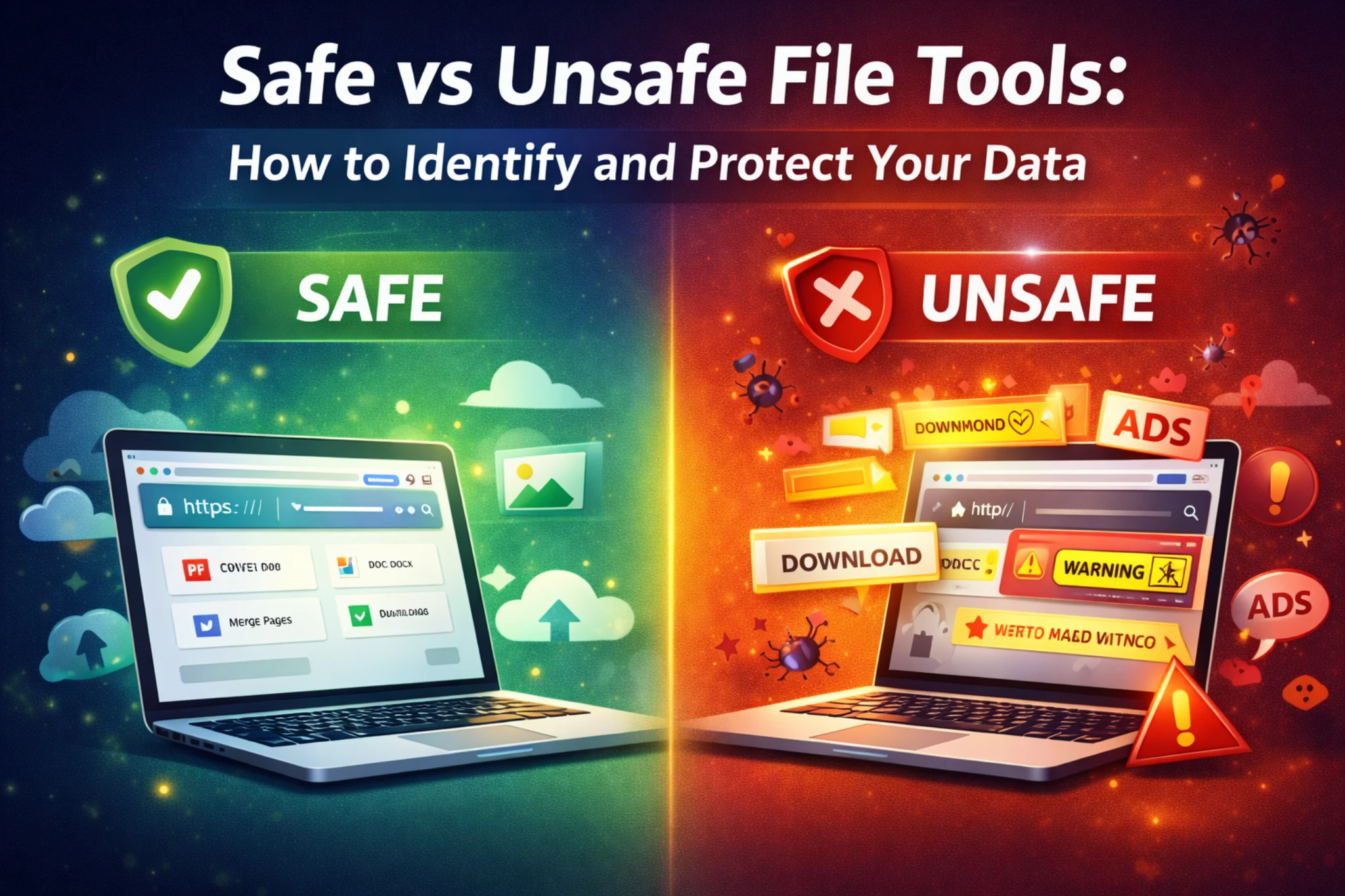
1. HTTPS Security
A safe website always uses HTTPS.
You will see a lock icon in the browser address bar. This means your data is encrypted during transfer.
2. Clear Privacy Policy
Safe tools clearly mention:
- Whether files are stored or deleted
- How long files are kept
- Whether data is shared
If a website is transparent, it is usually more trustworthy.
3. No Unnecessary Permissions
Safe tools do not ask for:
- Login access without reason
- File system permissions
- Background access
If a simple tool asks for too many permissions, it is suspicious.
4. Clean and Professional Design
Good tools usually have:
- Simple UI
- No spammy ads
- No fake download buttons
A clean interface often indicates a genuine service.
5. Trusted Reputation
Safe tools usually have:
- Good reviews
- Active users
- Mentions on trusted platforms
Always check user feedback before using a tool.
Signs of Unsafe File Tools
Now let’s look at warning signs.
1. No HTTPS (Very Dangerous)
If a website starts with HTTP instead of HTTPS, avoid it immediately.
Your data is not encrypted and can be intercepted.
2. Too Many Ads and Popups
Unsafe tools often:
- Show aggressive ads
- Redirect you to other sites
- Display fake buttons
This is a common trick to confuse users.
3. Asking for Sensitive Files
If a tool asks you to upload:
- ID proofs
- Password files
- Private documents
Be very careful.
A normal tool does not need sensitive data.
4. No Privacy Information
If the website does not explain how your data is handled, it is a red flag.
Lack of transparency usually means risk.
5. Forced Downloads
Some unsafe tools try to:
- Force you to download software
- Install extensions
- Run unknown files
Never download anything unless you trust the source.
Safe vs Unsafe Tools: Quick Comparison
FeatureSafe ToolUnsafe Tool
Security
HTTPS enabled
No HTTPS
Ads
Minimal or none
Too many popups
Permissions
Limited
Unnecessary access
Transparency
Clear privacy policy
No information
Downloads
Optional
Forced downloads
Real-World Example
Imagine you want to convert a PDF to Word.
A safe tool will:
- Let you upload the file
- Process it quickly
- Give you a download link
- Delete the file after processing
An unsafe tool may:
- Ask for login without reason
- Show multiple fake buttons
- Redirect to other websites
- Keep your file stored
This is where most users get confused.
Best Practices to Stay Safe
Here are some simple rules to follow.
1. Never Upload Sensitive Files
Avoid uploading:
- Bank details
- Personal identity documents
- Confidential business files
2. Use Trusted Websites Only
Stick to well-known platforms or your own tools.
3. Check URL Carefully
Always verify the domain name.
Fake websites often use similar names.
4. Avoid Clicking Random Ads
Only click official buttons.
Ignore popups and redirects.
5. Use Antivirus and Browser Protection
Keep your system protected with basic security tools.
Why This Matters for Tool Websites
If you are running a tool-based website, trust is everything.
Users will only use your tools if they feel safe.
To build trust:
- Clearly mention privacy policy
- Avoid unnecessary ads
- Keep UI clean and simple
- Do not store user files unnecessarily
This can help you stand out from competitors.
Future of File Tool Security
As more tools move online, security will become even more important.
Users are becoming aware of privacy risks.
In the future:
- More tools will use encryption
- Temporary file processing will become standard
- Privacy-focused tools will grow faster
If you focus on safety, your platform will have long-term success.
Conclusion
Not all file tools are safe, and understanding the difference is essential.
By checking simple things like HTTPS, privacy policies, permissions, and website design, you can easily identify whether a tool is safe or unsafe.
Always remember one rule:
If something feels suspicious, do not use it.
Protecting your data should always be your top priority.
FAQs
1. How can I check if a file tool is safe?
Check for HTTPS, privacy policy, and user reviews before using it.
2. Are all online file tools risky?
No, many tools are safe, but you must choose trusted ones.
3. Is it safe to upload personal files online?
It is not recommended unless the tool is highly trusted.
4. What is the biggest red flag in a file tool?
No HTTPS and too many ads are major warning signs.
5. Can unsafe tools steal my data?
Yes, unsafe tools can store, leak, or misuse your uploaded files.