Why Your File Upload Keeps Failing and How to Fix It
By Convertixy Editorial Team
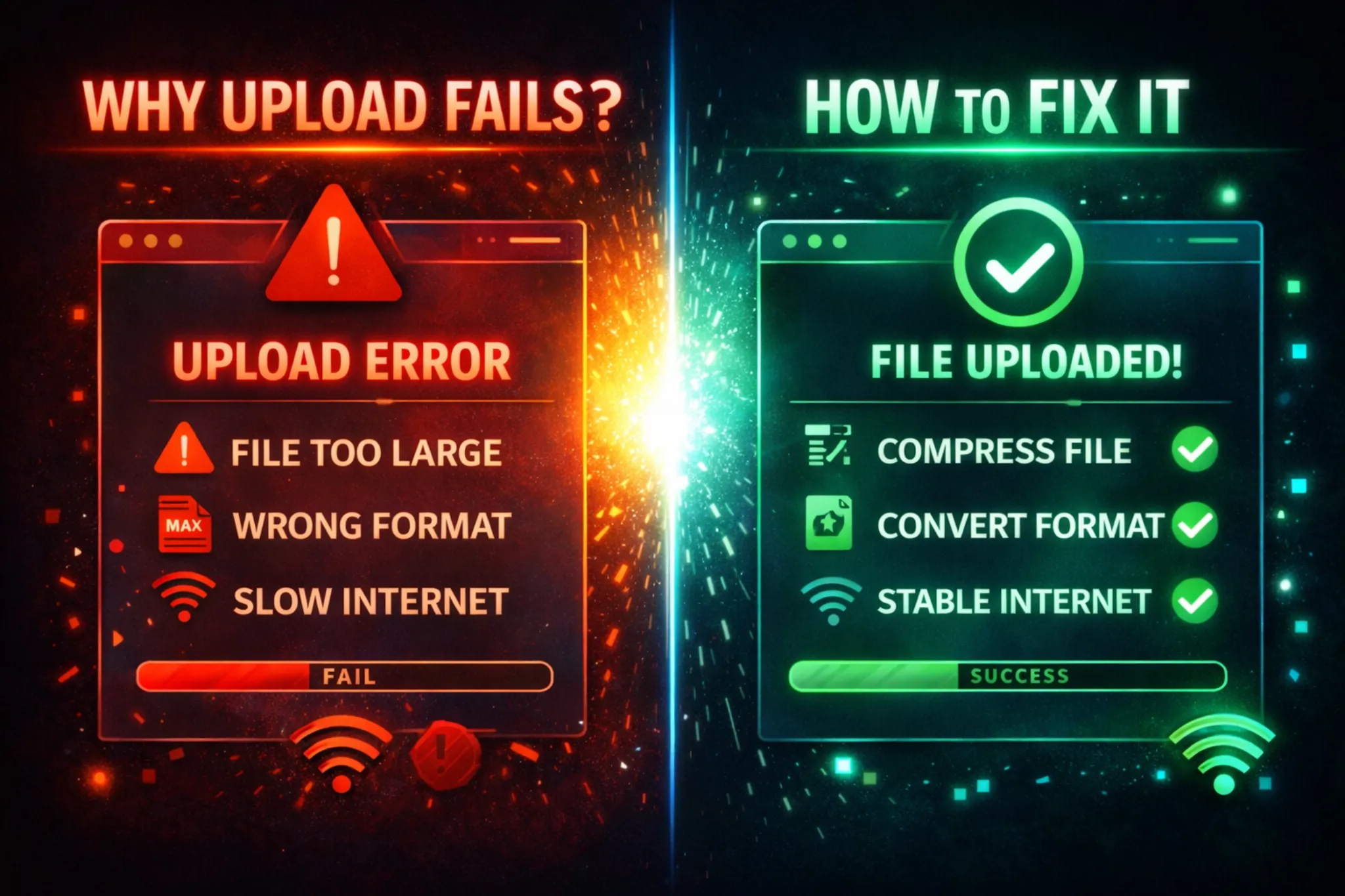
Introduction
Have you ever tried to upload a file, and it just keeps failing?
You click upload. You wait. And then suddenly, an error appears.
This is a very common problem. It happens on websites, apps, email platforms, and even cloud storage.
The frustrating part is that most platforms do not clearly tell you what went wrong.
But the truth is simple.
File upload failures usually happen because of a few common reasons. Once you understand them, fixing the issue becomes very easy.
In this guide, you will learn:
- Why file uploads fail
- The most common errors
- Simple ways to fix them
- Tips to avoid upload issues
What Does “File Upload Failed” Mean?
When a file upload fails, it means the file could not be successfully sent from your device to a server.
This can happen due to:
- Internet issues
- File size limits
- Unsupported formats
- Server problems
- Browser errors
Common Reasons Why File Upload Fails
Let’s look at the main reasons one by one.
1. File Size is Too Large
This is the most common reason.
Every website has a file size limit.
Example:
- Email attachment limit → usually 25MB
- Some websites → 5MB or 10MB
- Video platforms → higher limits
If your file is bigger than allowed, upload will fail.
How to fix:
- Compress the file
- Reduce image/video size
- Split the file into parts
2. Unsupported File Format
Sometimes your file format is not accepted.
Example:
- Uploading .exe file on a website
- Uploading .heic image where only .jpg is allowed
How to fix:
- Convert file format
- Use online file converters
- Check allowed formats before uploading
3. Slow or Unstable Internet
Uploads need a stable connection.
If your internet is:
- Slow
- Disconnecting
- Fluctuating
The upload may fail.
How to fix:
- Switch to a stable WiFi
- Avoid mobile data if weak
- Restart your router
4. Browser Issues
Sometimes the problem is not your file, but your browser.
Common problems:
- Too many extensions
- Cache issues
- Outdated browser
How to fix:
- Clear browser cache
- Disable unnecessary extensions
- Update your browser
- Try another browser
5. Server-Side Problems
Sometimes the issue is not on your side.
The website server may:
- Be down
- Be overloaded
- Have bugs
How to fix:
- Wait and try again later
- Check if the website is down
- Try uploading at a different time
6. File Name Problems
This is something most people ignore.
Problematic file names:
my file (final)!!!.jpg
Special characters can cause issues.
How to fix:
Rename your file like:
my-file-final.jpg
Use:
- Letters
- Numbers
- Hyphens
7. Permission Issues
Some apps or browsers block uploads due to permissions.
Example:
- Storage access not allowed
- File access restricted
How to fix:
- Allow file access permissions
- Check app settings
- Use trusted browsers
8. File Corruption
If your file is damaged, it may not upload.
Signs:
- File does not open
- Error during upload
How to fix:
- Re-download the file
- Re-create the file
- Use repair tools
9. Upload Timeout
If upload takes too long, it may fail automatically.
Why it happens:
- Large file
- Slow internet
- Server timeout
How to fix:
- Compress file
- Improve internet speed
- Upload smaller chunks
10. Security Restrictions
Some platforms block files for security reasons.
Example:
- Executable files (.exe)
- Suspicious content
How to fix:
- Use safe file types
- Scan file for viruses
- Use trusted sources
Step-by-Step Fix (Quick Checklist)
If your upload fails, follow this simple checklist:
- Check file size
- Check file format
- Rename file (remove special characters)
- Check internet connection
- Try another browser
- Clear cache
- Retry after some time
Most problems get solved using these steps.
Best Online Tools to Fix Upload Issues
Since your website is tool-based, these are perfect ideas too 👀
1. File Compressor Tool
- Reduce file size
- Works for images, PDFs, videos
2. File Converter Tool
- Convert formats (JPG, PNG, PDF, etc.)
3. File Splitter Tool
- Break large files into smaller parts
4. File Renamer Tool
- Clean file names automatically
5. File Validator Tool
- Check file structure and errors
Pro Tips to Avoid Upload Failures
Here are some smart tips:
- Always check file size before uploading
- Use common formats like JPG, PNG, PDF
- Keep file names simple
- Use fast internet
- Avoid uploading during peak hours
- Keep backup files
Real-Life Examples
1. Job Application
Uploading resume fails because:
- File size too large
- Wrong format
Fix: Compress and convert to PDF.
2. Website Tools
User uploads file → error.
Fix: Clean file + correct format.
3. Email Attachments
Large files fail to send.
Fix: Compress or use cloud link.
Conclusion
File upload failures are frustrating, but they are not complicated.
In most cases, the problem is simple:
- File too large
- Wrong format
- Internet issue
By following basic steps, you can fix the problem quickly.
And if you are running a tools website, this is a big opportunity.
You can create tools like:
- File compressor
- File converter
- File cleaner
These tools solve real problems and bring traffic.
FAQ
1. Why does my file upload fail again and again?
It usually happens due to file size, format, or internet issues.
2. How can I fix upload errors quickly?
Check file size, format, and internet connection.
3. What is the best file format for uploads?
Common formats like JPG, PNG, and PDF work best.
4. Can internet speed affect uploads?
Yes, slow or unstable internet can cause failures.
5. How to upload large files easily?
Compress the file or split it into smaller parts.